
My first video edit was a 45-second clip from a family trip. It took me almost 3 hours on my phone. The video had a big watermark. The sound was also 2 seconds late. And I cut the best part by mistake.
That day I learned one thing. The best free video editing app for Android for beginners is not the app with the most tools. It is the app that is easy enough that you don’t quit.
So I tried some popular free apps. I checked three things: how easy it is to learn, whether there’s a watermark on export, and how many ads show up.
Tested on: Vivo Y51, Android version 10, in 2026. Apps change often, so please check the Play Store before you install.
Who Is This Guide For?
This guide is for you if:
- You have never edited a video before
- You only have an Android phone, no laptop
- You want to make videos for YouTube, Reels, Shorts, or Facebook
- You don’t want to pay money in the beginning
If you already edit on a PC, some of this will feel too basic. But if you are starting from zero, this is the right place.
How I Picked the Best Free Video Editing App for Android for Beginners
I don’t care about fancy effects. My checklist was simple:
- Can I cut, split, and add music in the first 10 minutes?
- Can I export without a watermark in the free version?
- Do ads stop me while I edit?
- Does the app run smoothly on a normal phone?
If an app failed two of these, I dropped it.
1. CapCut: Best for Quick and Trendy Videos
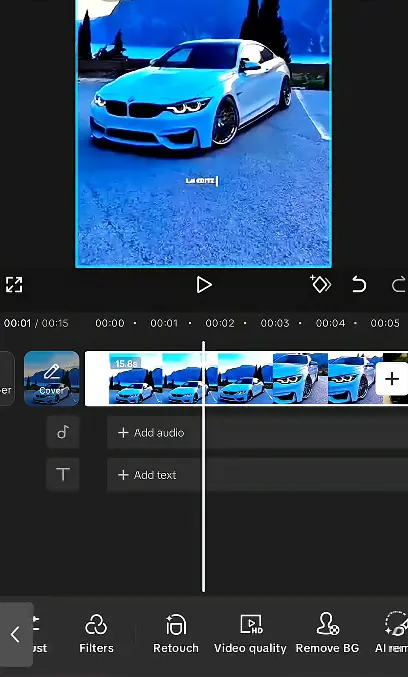
Most beginners hear about CapCut first. The timeline is easy to understand. It also has auto captions, templates, and background removal.
What I liked:
- Auto captions saved me a lot of typing
- Templates make a video look good fast
- Very easy to learn
What I did not like:
- It adds a small CapCut logo clip at the end. You can delete it, but I forgot once and exported the video
- Some effects are paid (Pro). You only find out after you use them
Lesson: Before you build a whole video around one effect, check if it has a small Pro tag.
2. VN Video Editor: Best for Learning Real Editing
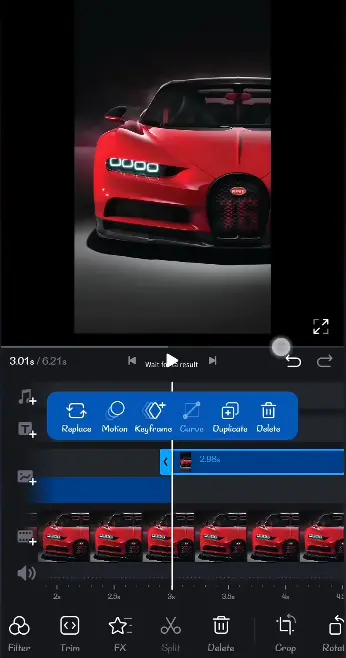
VN looks like real editing software. It has a multi-track timeline and keyframes. This sounds hard, but it teaches you how editing really works.
What I liked:
- Clean screen, no mess
- You can put video, text, and music on separate layers
- In my test, the free version had no watermark [confirm this on your own export before you publish]
What I did not like:
- It takes more time to learn than CapCut
- Fewer trendy templates
3. InShot: Best for Simple Social Media Videos
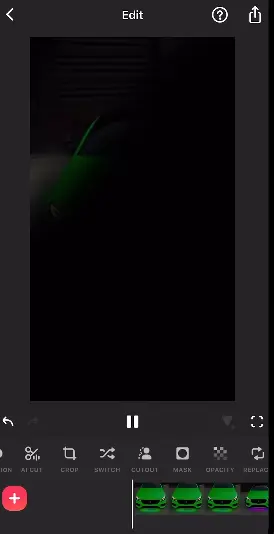
InShot is good for short vertical videos. It is easy to cut a clip, add text, and add music.
What I liked:
- Almost nothing to learn
- Easy crop size for Reels and Shorts
- Light app, works on old phones too
What I did not like:
- The free version adds a watermark. You can remove it by watching an ad, but it is annoying
- Ads come at bad times
4. YouCut: Best Light App
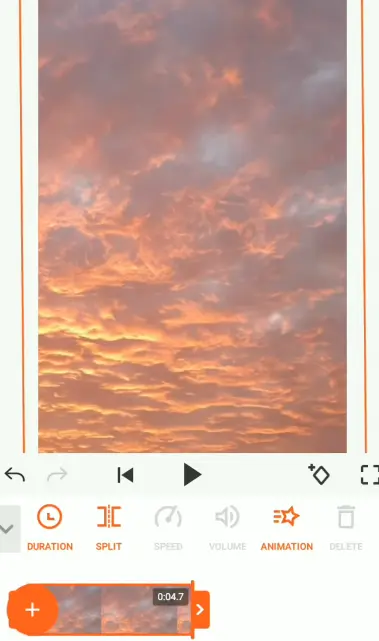
If your phone is old or your storage is low, try YouCut. It does the basic work well: cut, join, speed, and music.
What I liked:
- Fast and small
- Simple tools
What I did not like:
- Some ads
- Fewer advanced tools than VN or CapCut
A Small Note on KineMaster
KineMaster is strong, but the free version keeps a watermark unless you pay. For a beginner who wants a clean free export, I would keep it lower on the list.
Quick Comparison
| If you want… | Try this |
|---|---|
| Fast, trendy videos with captions | CapCut |
| To really learn editing | VN Video Editor |
| Quick edits for social media | InShot |
| Something light for an old phone | YouCut |
If you want only one app, start with CapCut. Later, move to VN when you want more control.
How to Make Your First Video (Step by Step)
- Keep all clips in one folder. Searching for files in the middle of editing wastes time.
- Add clips to the timeline in the right order.
- Cut the extra parts. Remove the first and last second of each clip. The video feels faster.
- Add music at the end. Once I added music first, I had to cut everything again.
- Keep music low. Around 20 to 30% is good if someone is talking.
- Use less text. Keep it away from the edges, because apps can cover it.
- Check the end of the video for a leftover logo or blank second.
- Export in 1080p, 30fps. It is enough for most uses and saves space.
- Watch the final video fully before you share it. I found sound problems this way.
Mistakes I Made (So You Don’t Repeat Them)
- Editing with low battery. My phone died during export, and I lost the project. Now I always charge first.
- Using copyrighted songs. One of my YouTube videos was muted. Use music from the app or from the YouTube Audio Library.
- Too many effects. My early videos had 6 transitions in 30 seconds. It looked bad.
FAQs
1. Which is the best free video editing app for Android for beginners?
CapCut is the easiest to start with. VN Video Editor is better if you want to learn proper editing. Both have good free versions.
2. Is there a free video editing app for Android with no watermark?
In my test, VN Video Editor had no watermark. CapCut adds a logo clip that you can remove. InShot and KineMaster add a watermark in the free version. Rules change, so check before you export.
3. Can I edit videos on a low-end Android phone?
Yes. YouCut and InShot work well on old phones. Close other apps and export in 1080p or lower.
Final Thoughts
You don’t need the perfect app on day one. Pick one app and make three or four small videos. You will soon know what you like and what you don’t.
Start simple, check your video before sharing, and let yourself make bad videos at first. Everyone does.
