
If you want the best free AI video editors for Android without a watermark, start with VN Video Editor. Its official site says exports are free and watermark-free.
CapCut is more powerful, but its free exports showed a watermark for me, so I would not pick it for clean exports.
For Reels, Instagram’s Edits app is also worth a try. Whichever app you pick, always do a 5-second test export first.
Here is how I tested them, and what went wrong.
I once spent almost two hours editing a travel clip on my phone. The cuts were clean, the captions looked good, and the music fit well. Then I exported it and saw a logo on my finished video.
After that, I tested a few free editors on my Vivo Y51 over 2 weeks. This article is based on those tests and on what the apps themselves say. App plans change, so treat this as a starting point and test on your own phone.
Why Watermarks Show Up
A watermark can come from different places, and knowing which one saves a lot of time.
- The app adds it to every free export, and you need a paid plan to remove it.
- A template adds a branded ending clip.
- A Pro-only effect or asset blocks or marks the export.
- The app adds a default ending slide that you can delete from the timeline.
Many people blame the whole app. Often it is just one clip or one effect.
The 4 Best Free AI Video Editors for Android Without a Watermark
1. VN Video Editor: My First Pick for a Clean Export
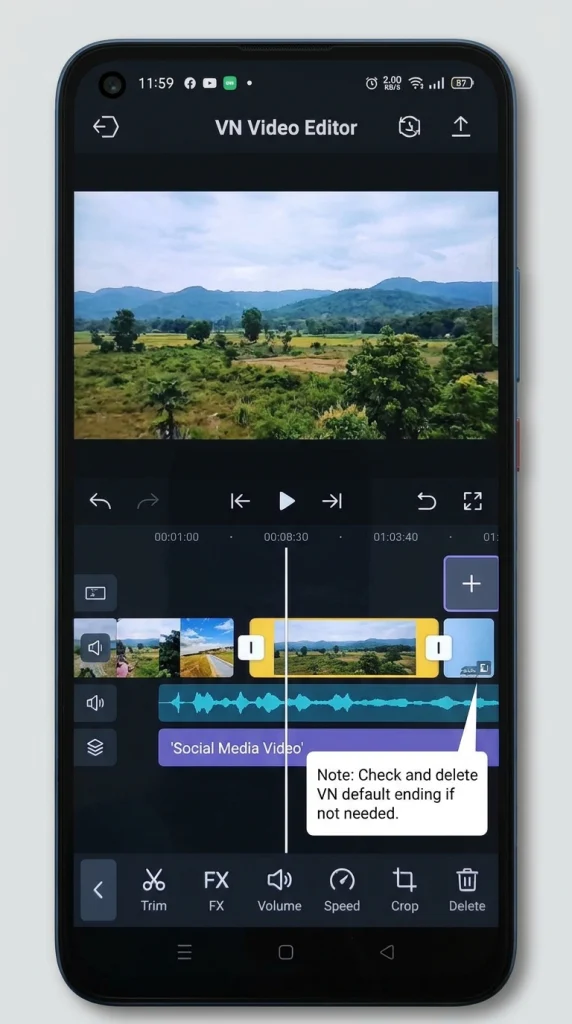
VN has a multi-track timeline, keyframes, captions, and audio tools. VN’s official site says it offers editing with no watermarks, for free. Some reviews also mention AI tools inside the app.
My result: I tested VN Video Editor on my Vivo Y51. The app worked well for basic video editing, including trimming clips, adding text, adjusting audio, and arranging multiple video layers.
The editing timeline was easy to understand after spending some time exploring its tools. I also found it useful for making short social media videos without needing a desktop computer.
One thing to check: some guides say VN adds a default ending slide to the timeline. If you see it, delete it before you export. Then check the saved file in your gallery.
VN can feel a bit pro at first because the timeline has many options. Give it 15 minutes, and it gets easy.
2. Instagram Edits: Good for Reels
Android Authority has reported that Edits can export up to 4K at 60fps without a watermark. If you mostly post on Instagram, it is worth testing.
It is newer and has fewer tools than the big editors.
I tried Instagram Edits on my Vivo Y51. The app is useful for creating short videos and Instagram Reels. Its interface feels simple, especially when you only need to trim clips, add text, and make basic adjustments.
However, compared with more established video editors, it has fewer advanced editing options.
On my device, I would recommend checking the app’s performance and available export settings before starting a longer project.
3. CapCut: Powerful, But My Free Exports Had a Watermark
CapCut has auto captions, background removal, keyframes, and a big effects library. Many smart tools people call AI are here, and that is why it is so popular.
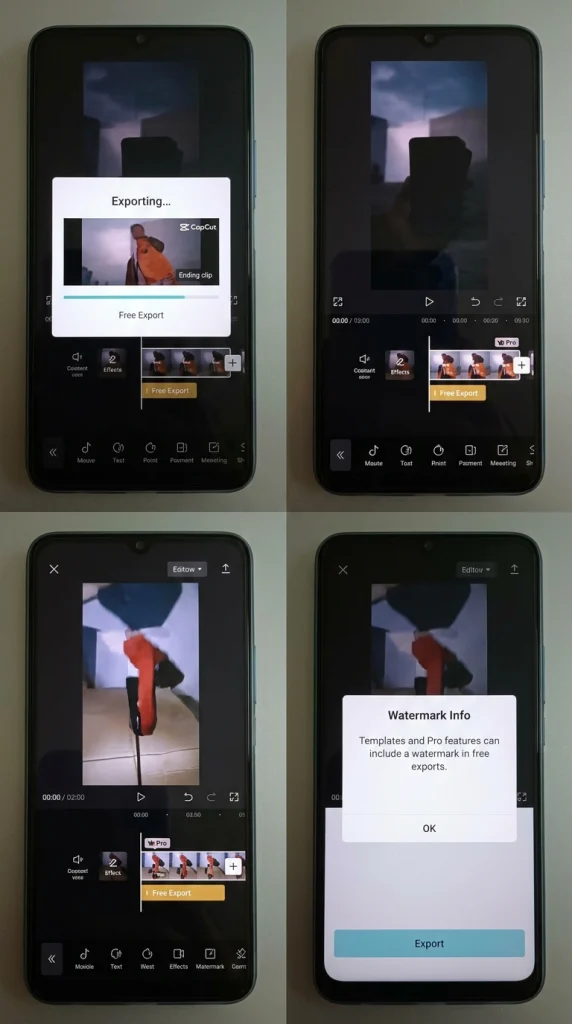
But on the free version, my exports did show a watermark.
CapCut’s own help pages say that watermark-free export depends on the features you use and your app version.
They also say templates often add an ending clip. Some other sites say that on mobile, a clean export can require CapCut Pro.
So my advice is simple. Use CapCut if you love its tools, but test a short export first and do not promise yourself a free clean video.
If you want to try again, do this: start from a blank project, delete any ending clip, remove effects with a Pro badge, and export a short test.
4. InShot: Easy, But the Free Version Adds a Watermark
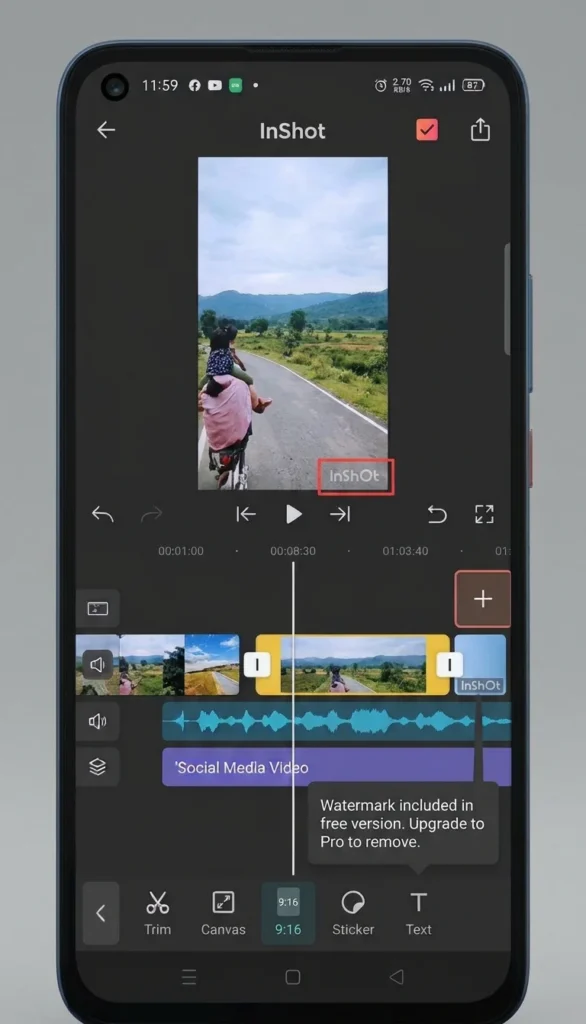
InShot is great for quick trimming, cropping, and vertical videos. The free version adds a watermark, and you need a paid plan to remove it. I use it only for quick drafts.
How I Check Every App Before I Trust It
This routine saved me from wasting time again.
- Start from a blank project, not a template.
- Go to the end of the timeline and delete any ending clip.
- Check effects, filters, and stickers for a crown or Pro badge.
- Export a 5-second test.
- Open the saved file in your gallery. Do not trust the in-app preview.
- Check the video’s resolution and corners.
If the test is clean, then I start the real edit. This is the best habit I built.
Mistakes I Made (So You Don’t Have To)
I trusted the preview. It looked clean, but the saved video had an extra clip at the end. Always check the real file.
I used a template because it looked cool. It was fast, but it came with a branded ending. Now I use templates only for ideas.
I ignored the Pro badge on one filter. It blocked a clean export. Replacing it took less than a minute.
Which One Should You Pick?
- Want a clean free export? Start with VN, and test it on your phone.
- Mostly post Reels? Try Edits.
- Love CapCut’s tools? Use it, but test the watermark first, and keep a backup editor.
- Want quick edits and do not mind a watermark? InShot is fine.
If your phone is old or low on storage, remember that 4K exports are heavy. A sharp 1080p export that finishes is better than a 4K export that crashes.
A Quick Note on AI Features
AI in these apps usually means auto captions, background removal, smart cutouts, or beat-sync. They save time, but they are not perfect.
Auto captions need checking, especially with names, accents, or mixed languages. Background removal can leave rough edges around hair, so zoom in before you export.
FAQs
1. Which free video editor for Android has no watermark?
VN says on its official site that exports are free and watermark-free, and Edits is also reported to export without a watermark.
2. Does CapCut add a watermark on the free version?
It can. CapCut says the result depends on the features you use and your app version, and templates often add an ending clip.
3. How do I remove the ending clip or watermark in the timeline?
Go to the end of the timeline, select the extra branded clip, and delete it. Then replace any Pro-badge effects and export again. If the watermark remains, the app may require a paid plan for a clean export.
Final Thoughts
The best editor is the one that gives you a clean export on your own phone. For me, that started with a test, not with a promise from any website.
Test a short clip, check the saved file, and stick with official apps. If you found an app that exports cleanly on your phone, tell me in the comments. I would love to test it too.

1 thought on “4 Best Free AI Video Editors for Android Without a Watermark (What I Found in My Tests)”