
You shoot a great clip with your drone or Osmo, and it looks amazing on the screen. Then you open it in a random app, and the video lags, the app crashes, or the export comes out with a watermark across the sky.
If you are searching for a free DJI video editor for Android, here is the truth: there is no single perfect app.
A small combo of free apps works best, and a few things are worth avoiding. This guide explains all of it in simple words.
Start With DJI’s Own Free Apps
The safest place to begin is DJI’s official apps.
DJI Mimo is for handheld devices like the Osmo Pocket, Osmo Action and Osmo Mobile. Along with camera control, it has basic editing tools such as trimming, templates and music.
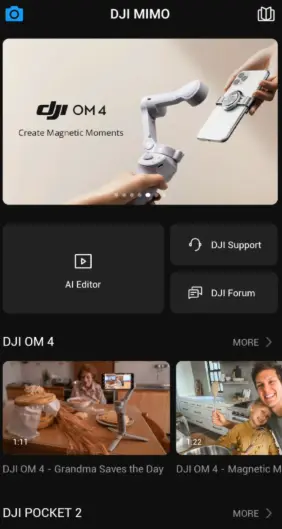
DJI Fly is for drones like the Mini and Air series. It also has templates and quick edit options, which are handy for posting straight from the field.
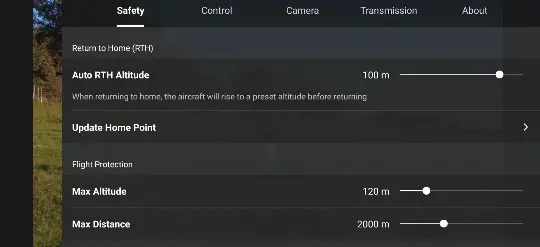
Both apps are free. DJI Fly may be available on Google Play or only from DJI’s official website, depending on your phone and region
But they are not full editors. Think of them as a quick-cut tool, not a replacement for CapCut or VN.
Best Free DJI Video Editor for Android: Apps Worth Trying
All the apps below have a free version. Free limits change often, so check the current terms before you commit.
CapCut: The easiest option for beginners. Templates, captions, speed ramps and filters are good. Some templates add an end-card watermark, and a few effects need a paid plan.
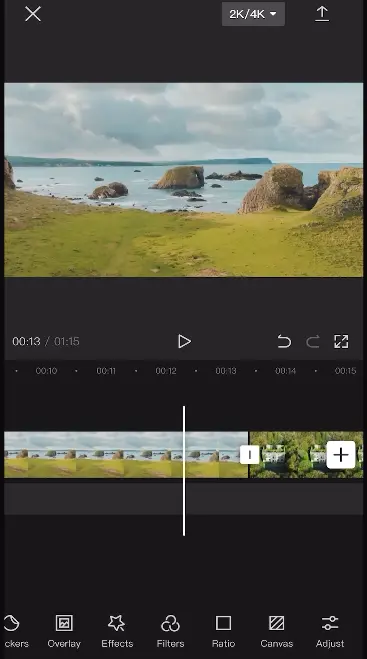
I have edited drone footage in CapCut on my Vivo Y51, which is a budget phone, and it handled the work better than I expected.
Here is how it went for me. If your phone is similar, start with shorter clips and keep the project light.
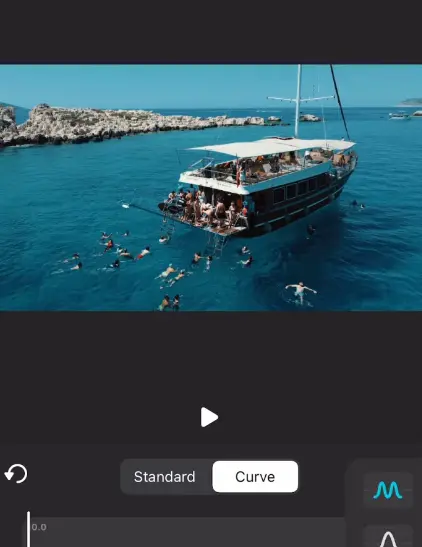
VN Video Editor: Best if you want a clean timeline. Multi-track editing works well, and it runs fine on average phones.
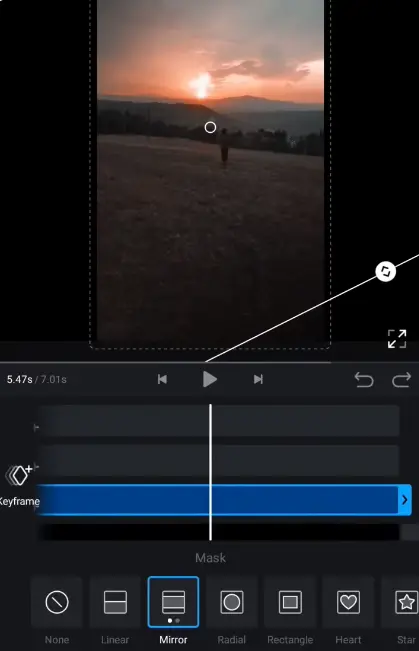
InShot: Great for Reels and Shorts (vertical video). The free version has a watermark, and some features need a subscription.
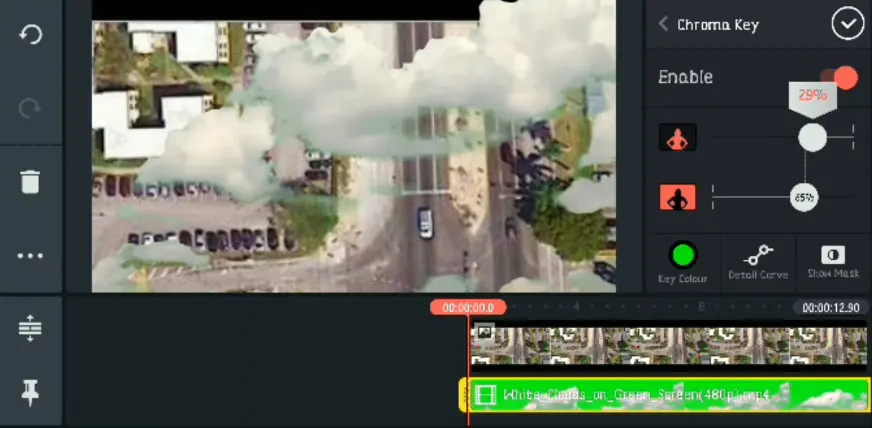
KineMaster: Powerful, but the free version adds a watermark. Fine for practice, not ideal for public posts.
If you want to install only one app, start with VN or CapCut.
Why DJI Footage Lags on Phones
Not many people explain this part.
DJI cameras record high-bitrate files, often in 4K, sometimes in H.265 (HEVC), and sometimes in a flat colour profile like D-Log or D-Cinelike. That combination can be heavy for a mid-range Android phone.
Common problems:
- Lag while scrubbing the timeline
- Crashes during export
- Colours that look dull and grey
This does not mean your footage is bad. It simply means the phone is working too hard.
A Simple Workflow That Saves Time
Step 1: Choose smart recording settings.
If you post on Instagram, TikTok or YouTube Shorts, you don’t need 4K at 60fps. Recording in 1080p or normal 4K makes editing much smoother. On an older phone, use the H.264 option if your device offers it.
Step 2: Move the files to your phone.
For short clips, the DJI app’s download option is fine. For bigger batches, a USB-C SD card reader is faster and more reliable than wireless transfer.
Step 3: Free up storage.
Editing needs free space for cache and export. Keep at least a few GB empty, and more for long 4K projects. A full phone is one of the biggest reasons for crashes.
Step 4: Trim first.
Remove the boring parts, then add music and effects. A lighter timeline gives a smoother preview.
Step 5: Fix flat colours.
If you shot in a flat profile, add a LUT or raise contrast and saturation a little. If that feels complicated, shooting in the standard colour profile is the easier route.
Step 6: Export wisely.
For social media, 1080p is enough most of the time. Platforms compress videos anyway, so the highest setting rarely helps.
Common Mistakes to Avoid
Whichever editor you are installing, make sure to install it from an official source, such as the Play Store.
Editing 4K on a weak phone and blaming the app. Often the fix is to lower the resolution, not to change the app.
Adding effects too early. Too many filters and transitions make the timeline heavy. Build the story first and polish later.
Ignoring audio. Drone footage usually has wind noise. Mute the original sound and add music or a voiceover. It makes a bigger difference than most visual tweaks.
Picking a template without checking the watermark. It is annoying to finish a project and then find an end card you didn’t want.
Which App Is Right for You?
- Want a fast result: DJI Mimo or DJI Fly built-in templates
- Want social media style edits: CapCut or InShot
- Want full timeline control: VN Video Editor
- Just learning, watermark is okay: KineMaster
You don’t have to stick to one app. Many creators use the DJI app for transfer and quick cuts, then finish the video in CapCut or VN.
FAQs
1. Does DJI have an official free video editor for Android?
Yes. DJI Mimo (handheld devices) and DJI Fly (drones) are both free on Google Play. They offer basic editing, but they are not full editors.
2. What is the best free editor for DJI footage on Android?
There is no single answer. VN Video Editor is great for timeline control, and CapCut is great for quick social media edits.
3. If an app crashes with DJI footage, is my phone bad?
Not necessarily. 4K or H.265 files are heavy for many phones. Try a lower resolution and free up some storage.
Final Thoughts
A free DJI video editor for Android is not one magic download. It is a small toolkit: the official DJI app to get your footage, one reliable editor to shape it, and recording settings that match your phone.
Keep it simple. Record at a reasonable resolution, trim hard and go easy on effects. Your first few edits may look rough, and that is completely normal. DJI footage is good enough that clean cuts and decent music already go a long way.
If you faced an export bug or a surprise watermark on your device, share it in the comments.
